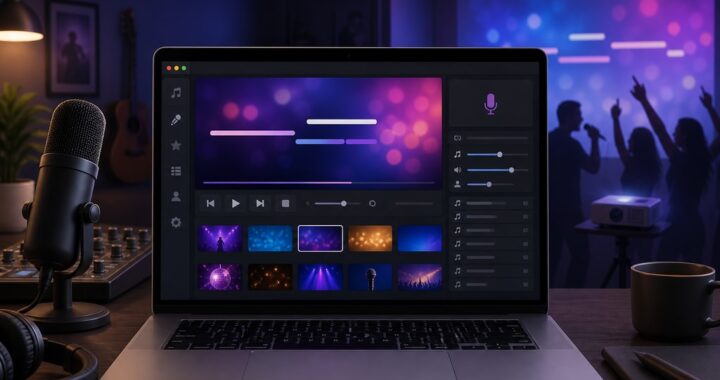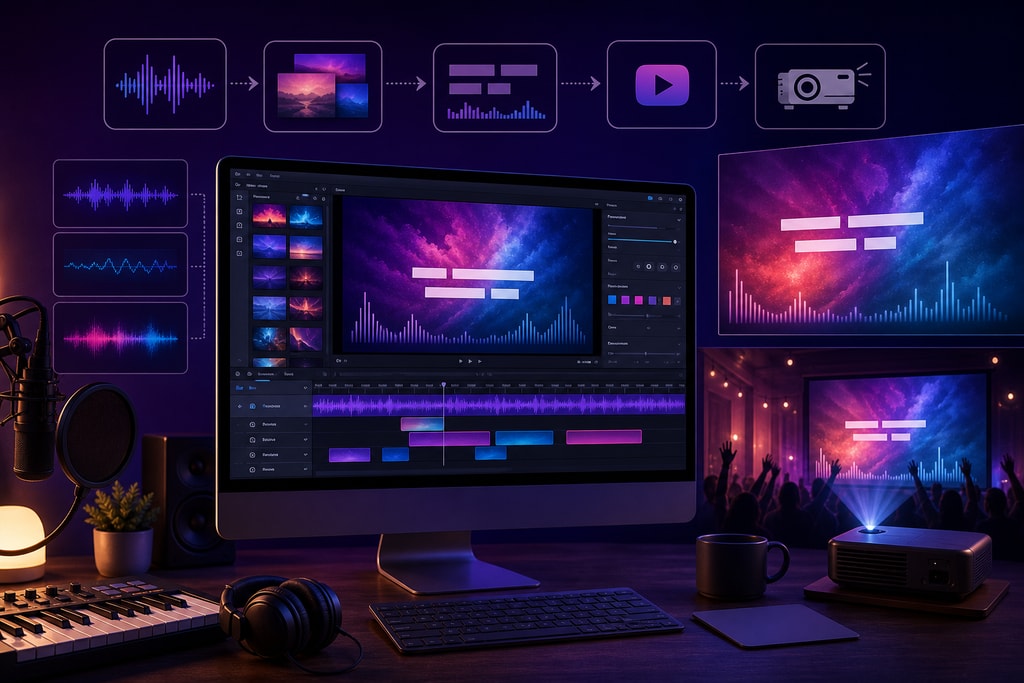
Lyric videos are an engaging way for artists and content creators to connect with their audiences on platforms like YouTube. By marrying music with synchronized lyrics, they enhance the listening experience and boost viewer engagement. For Mac users, LyricMagic offers a seamless solution for creating professional lyric videos. This comprehensive guide will walk you through every step of the process, ensuring your creations are both dazzling and effective.
Why Choose LyricMagic?
LyricMagic stands out due to its focus on privacy, ease of use, and powerful features tailored for Mac users:
- AI-Driven Lyric Transcription: Transcribes lyrics from audio files automatically.
- Precise Timing Synchronization: Ensures lyrics align perfectly with the music.
- Customizable Backgrounds: Personalize visual aesthetics to enhance your video.
- Batch Processing: Ideal for creating multiple videos simultaneously in the Pro version.
For more in-depth information, visit the LyricMagic Pro page.
Initial Setup: Getting Started with LyricMagic
System Requirements
Before you begin, ensure your Mac meets these requirements:
- Operating System: macOS 11.0 or later.
- Processor: Apple Silicon (M1 or newer).
- RAM: 8GB at a minimum.
- Storage: 1GB of free space.
Installation Process
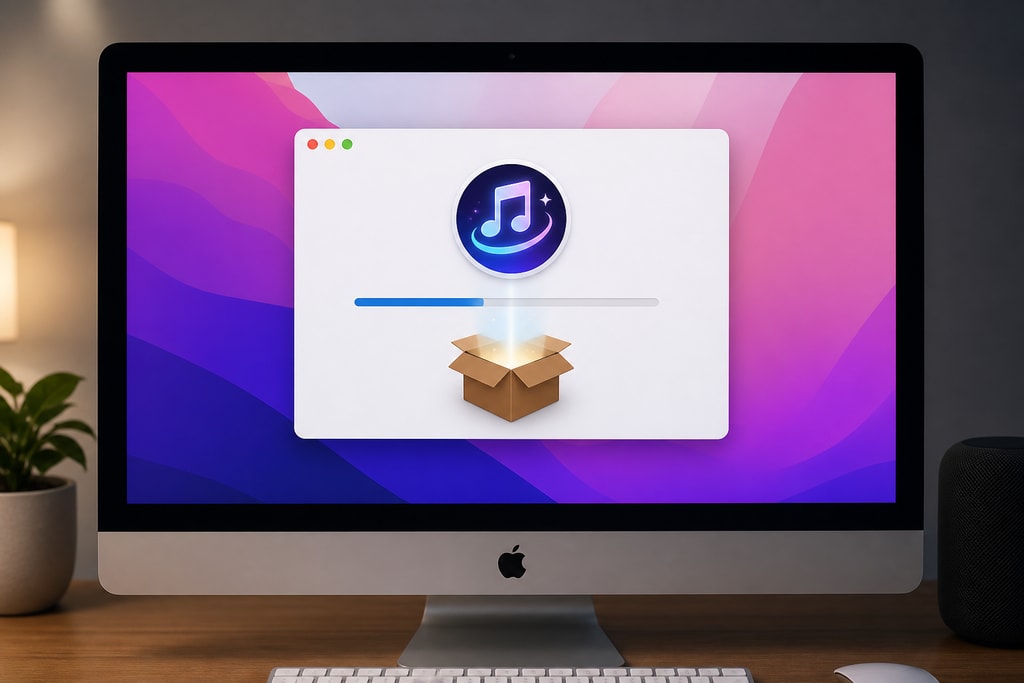
- Download LyricMagic: Head to the official LyricMagic page and download the Free version.
- Install the Application: Open the downloaded file and follow the instructions to install LyricMagic on your Mac.
Crafting Your Lyric Video with LyricMagic
Step 1: Import Your Audio File
- Launch LyricMagic: Open the application from your Applications folder.
- Add Audio: Click 'Add Audio' and select the file for your lyric video. LyricMagic supports MP3, WAV, and M4A formats.
Pro Tip: Choose a high-quality audio file to ensure optimal lyric transcription.
Step 2: Automatic Lyric Transcription
LyricMagic’s AI engine automatically transcribes lyrics once the audio file is loaded. Depending on the audio quality and length, this process may vary in duration.
Step 3: Review and Edit Lyrics
Accuracy check is crucial:
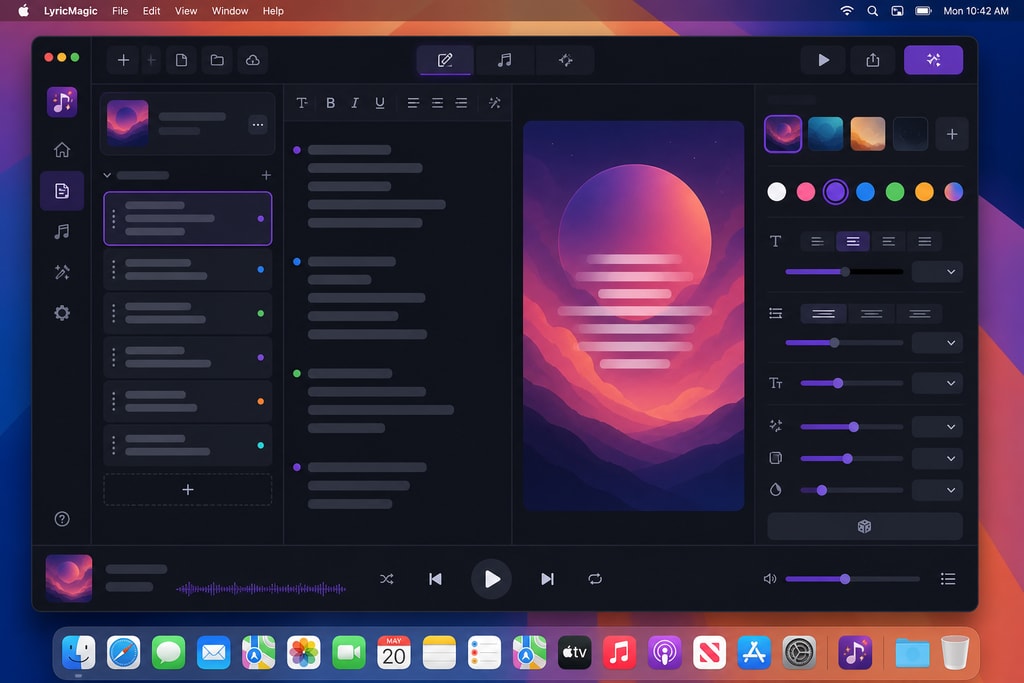
- Access the Lyrics Editor: Click 'Edit Lyrics' to review transcriptions.
- Edit for Precision: Correct any discrepancies and save the changes.
Step 4: Customize Visual Elements
Visual appeal is key to engaging lyric videos:
- Choose a Background: Opt for built-in backgrounds or upload personal images or videos.
- Adjust Text Appearance: Modify fonts and colors for legibility.
- Set Animation Effects: Enhance lyrics with dynamic animations.
Step 5: Synchronize Lyrics with Audio
While LyricMagic aligns lyrics automatically, manual adjustments ensure perfection:
- Open the Timing Editor: Use the 'Timing' tab for manual adjustments.
- Fine-Tune Synchronization: Drag lyric lines to perfect timing.
- Preview Adjustments: Play the video to ensure accuracy.
Step 6: Export the Lyric Video
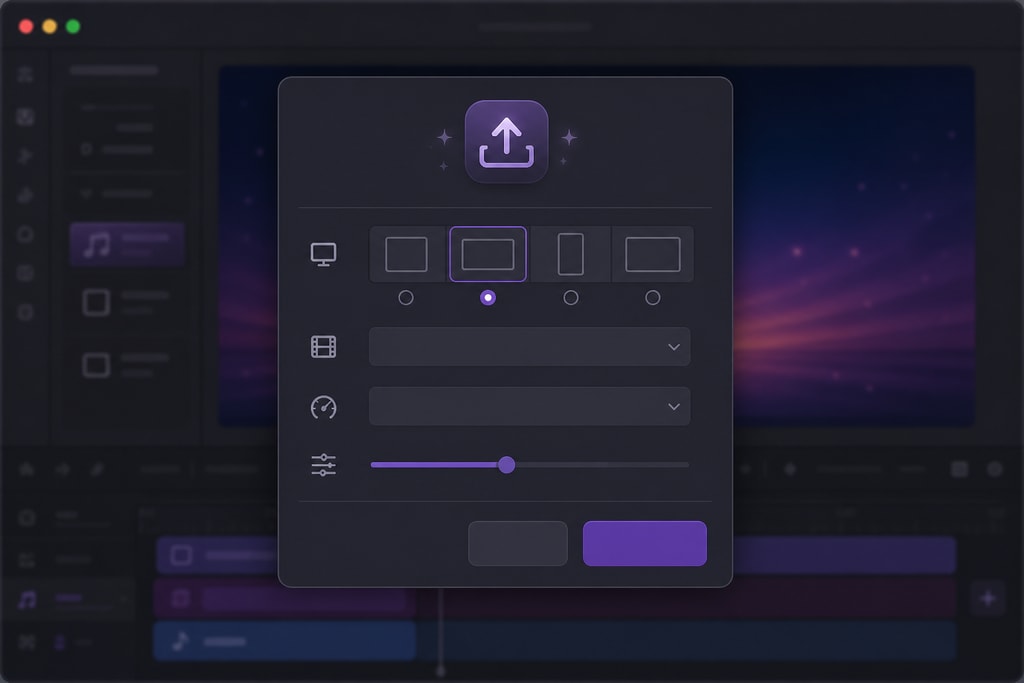
- Select Export Settings: Choose resolution and format.
- Export Video: Click 'Export' and select a destination folder.
- Save Your Work: LyricMagic processes and saves your video.
Advanced Tips for Engaging Lyric Videos
- Maintain Readability: Opt for clear, bold fonts and ensure high contrast with the background.
- Simple Yet Effective: Avoid overly complicated animations that overshadow the lyrics.
- Mood Alignment: Choose visuals that complement the song's tone.
- Cross-Device Testing: Ensure compatibility across various devices and screen sizes.
Common Mistakes to Avoid
- Overly Cluttered Backgrounds: Distracts from the lyrics.
- Inconsistent Timing: Breaks viewer engagement.
- Ignoring Export Quality: Low-quality videos undermine your work.
Frequently Asked Questions (FAQ)
Q: Can I use LyricMagic on an Intel-based Mac? A: Currently, LyricMagic is optimized for Apple Silicon Macs (M1 or newer). Support for Intel-based Macs is unavailable.
Q: Does LyricMagic require an internet connection? A: No, it operates offline, safeguarding your projects.
Q: Is there a watermark on LyricMagic Free exports? A: Yes, Free version exports have a watermark. The Pro version removes it and unlocks additional features.
Q: Does LyricMagic support non-English songs? A: Yes, it supports multiple languages, though accuracy can vary with language and quality.
Q: How do I upgrade to LyricMagic Pro? A: Visit the LyricMagic Pro page to purchase the Pro version.
Conclusion
With LyricMagic, creating professional lyric videos on your Mac is straightforward. Its intuitive interface and robust features cater to both novices and seasoned creators. Whether you're crafting videos for YouTube or personal projects, LyricMagic equips you with the tools you need to shine visually and audibly.
For more tools and to explore LyricMagic further, visit KaraMagic.
—
Note: This guide reflects information as of July 2026. Visit KaraMagic for the latest updates.