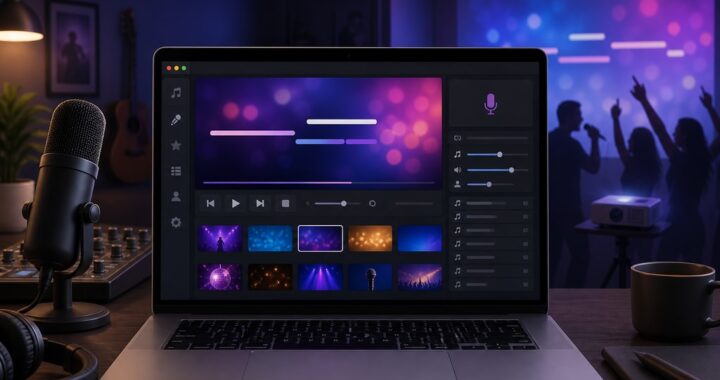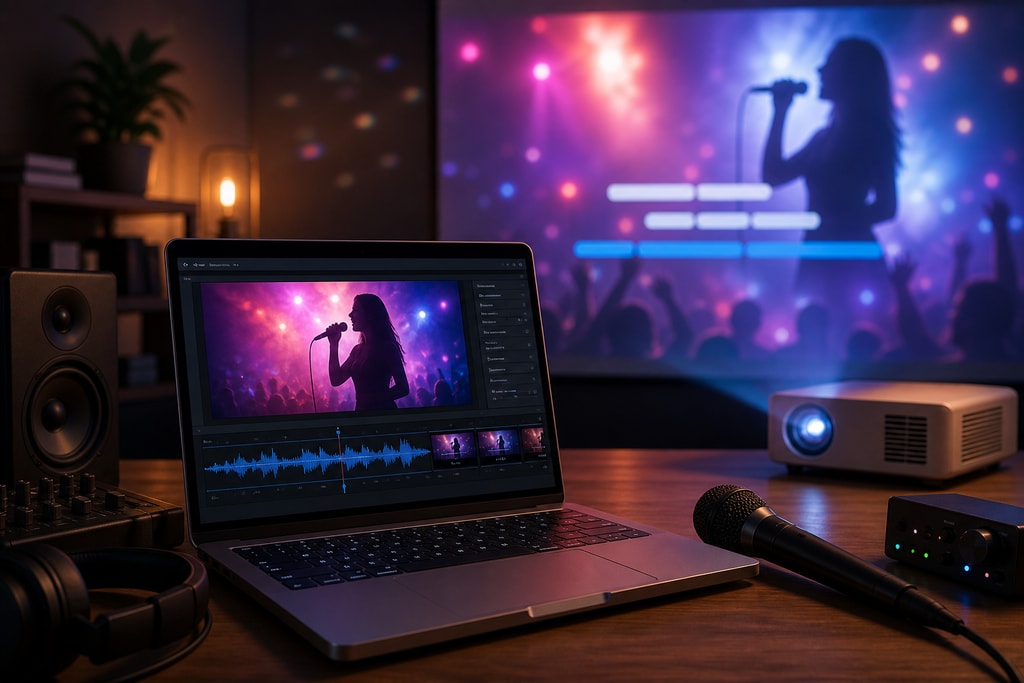
Creating high-quality karaoke videos on your Mac is a seamless experience with KaraMagic. This comprehensive guide explores strategies to optimize video quality using KaraMagic’s robust features, ensuring a professional and enjoyable karaoke session.
Understanding KaraMagic's Capabilities
KaraMagic offers variants tailored to different needs:
- KaraMagic Free: Facilitates one-click conversion of music videos into karaoke tracks using AI for vocal removal and lyric transcription, with videos containing a watermark.
- KaraMagic Pro: Includes all Free version features plus watermark-free exports, lyric editing, customizable backgrounds, and batch processing. Discover KaraMagic Pro.
Steps to Optimize Karaoke Video Quality
1. Selecting High-Quality Source Material
A great karaoke video starts with quality source material. Ensure your audio or video files are high resolution and have clear audio to minimize quality degradation and enhance the end product.
Practical Tips:
- Always opt for the highest available resolution of your video files.
- Select audio tracks with minimal background noise and clear vocal separations.
2. Utilizing AI Vocal Removal Effectively
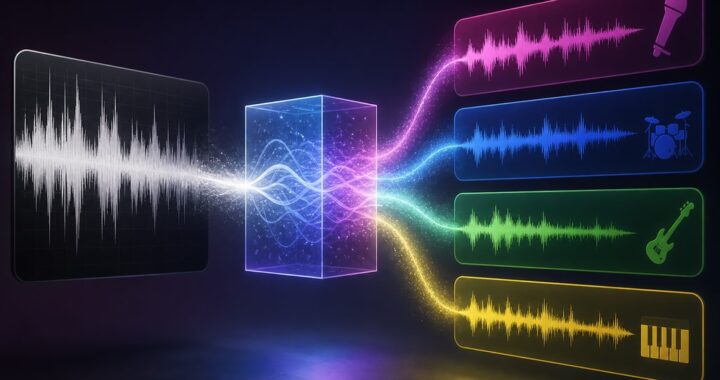
KaraMagic's AI technology separates vocals from instrumentals for a karaoke-ready track. To maximize efficiency:
Best Practices:
- Choose Clean Audio Tracks: Prioritize tracks with less background intervention for superior vocal extraction.
- Use Studio Versions: Live versions may contain crowd noise or echo, complicating clean separation.
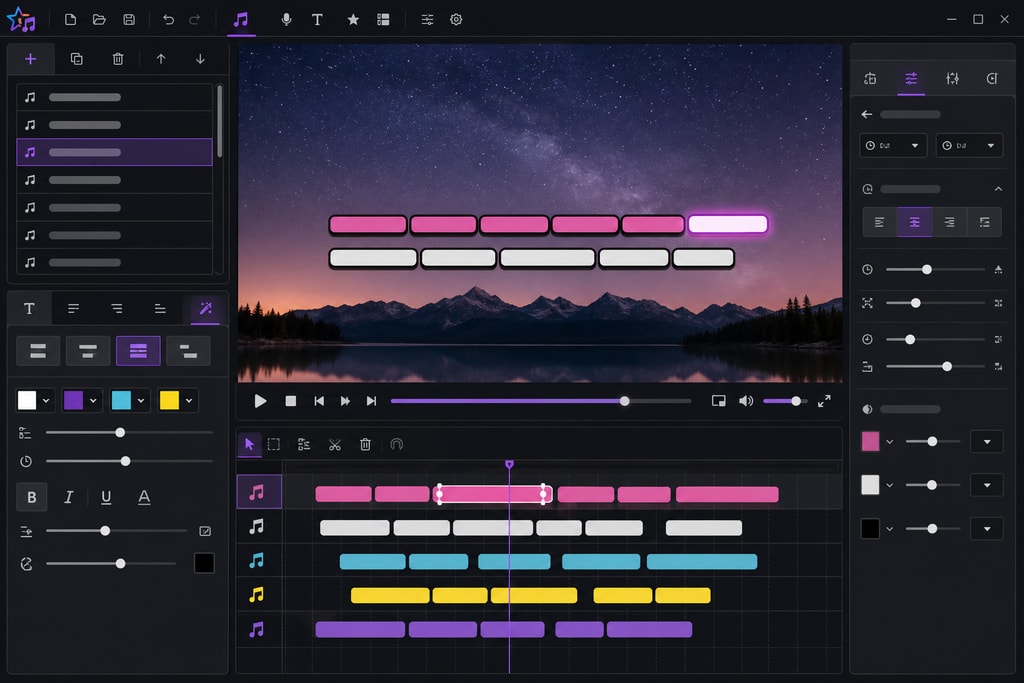
3. Fine-Tuning Lyrics Synchronization
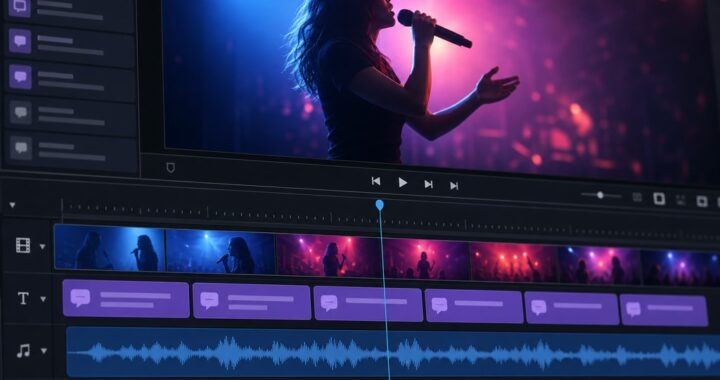
Accurate lyric timing is a cornerstone of an excellent karaoke video. KaraMagic’s AI transcribes lyrics, but manual tweaks can achieve perfection:
Trick to Enhance:
- Review and Edit: Check KaraMagic's transcription for accuracy and use the Pro editor to sync lyrics precisely.
4. Customizing Visual Elements
Enhancing visuals heightens the karaoke experience. Consider:
- Backgrounds: Use consistent backgrounds that offer good contrast to the text.
- Fonts and Sizes: Large, sans-serif fonts improve readability.
- Highlighting: Subtle highlights keep the current lyric line visible.
Mistakes to Avoid:
- Avoid overly complex backgrounds that can distract.
- Ensure text color is always legible against the background.
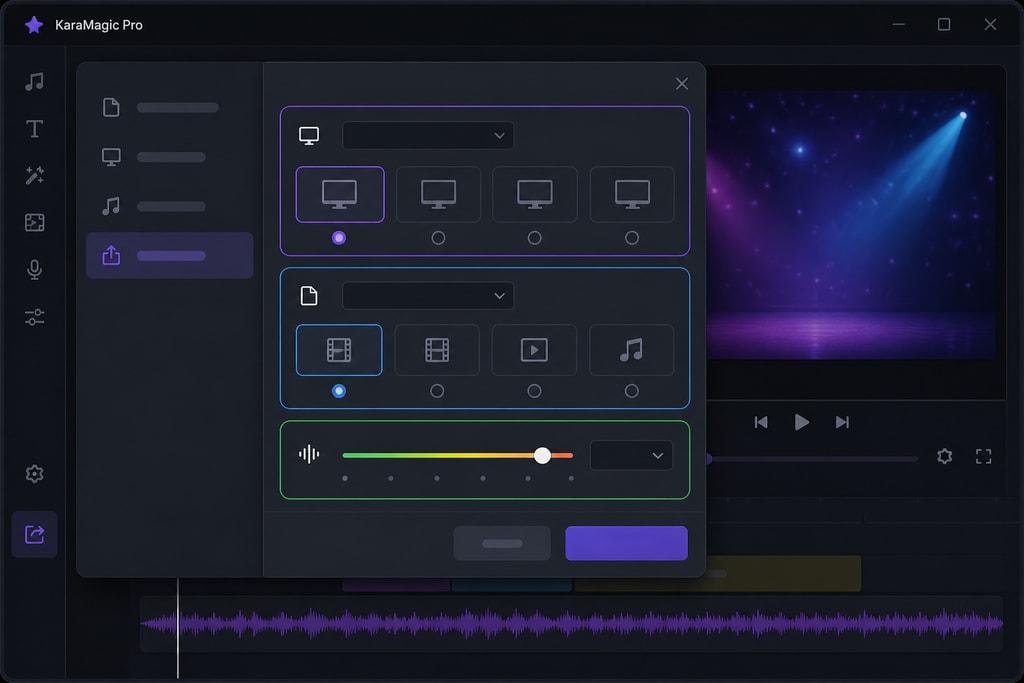
5. Exporting with Optimal Settings
Correct export settings maintain file quality:
- Resolution: Choose 1080p to strike a balance between quality and size.
- Format: MP4 is the preferred format for broad compatibility.
- Bitrate: Higher bitrates preserve quality but increase file size. Balance according to storage capacity and distribution needs.
Advanced Tips for Power Users
- Consider integrating custom branding if you’re creating videos for public events or commercial use.
- Consistently update KaraMagic to utilize the latest features and improvements.
FAQ – Your Karaoke Video Questions Answered
Q: Can I use KaraMagic on an Intel-based Mac?
A: Currently, KaraMagic supports only Apple Silicon (M1 or newer) Macs. More details here.
Q: How to remove the watermark from my karaoke videos?
A: Upgrade to KaraMagic Pro for watermark-free exports and advanced features like lyrics editing. Upgrade now.
Q: Is an internet connection required to use KaraMagic?
A: No, KaraMagic operates entirely offline, ensuring privacy and reliability.
Q: Can I process multiple videos simultaneously?
A: Yes, batch processing is available in KaraMagic Pro for efficient multiple video creation.
Q: What limitations does the Free version of KaraMagic have?
A: The Free version adds a watermark to exported videos. Upgrade to Pro for advanced features and watermark-free outputs.
Q: How should I adjust for different genres of music?
A: Adapt backgrounds and text styles to fit the mood. For upbeat tracks, vibrant colors can enhance the energy, while softer tones may suit ballads.
Checklist for High-Quality Karaoke Videos
- [ ] Use high-resolution source files.
- [ ] Ensure clear audio with minimal background noise.
- [ ] Review AI-generated lyrics for accuracy.
- [ ] Customize visuals for readability.
- [ ] Export appropriately (1080p MP4, suitable bitrate).
By following these advanced techniques and utilizing KaraMagic's powerful features, you can craft exceptional karaoke videos on your Mac, enhancing both personal enjoyment and sharing experiences with audiences.
Sources and Further Reading
- KaraMagic Official Website
- KaraMagic Pro Features
- How to Improve Video Quality on Mac
- How to Make a Karaoke Video: Step-by-Step Guide
- KaraMagic Free