Creating karaoke videos on your Mac can be an incredibly rewarding experience, especially with the power of KaraMagic Free at your fingertips. This guide is designed to take you through every step, from installation to exporting high-quality karaoke videos. Along the way, we'll provide practical examples, decision criteria, and common mistakes to avoid.
Why Choose KaraMagic Free?
KaraMagic Free stands out as a premier application for Mac users wanting to create karaoke videos. Here's why it should be your go-to tool:
- One-Click Conversion: Seamlessly transform music videos or audio files into engaging karaoke videos.
- AI-Powered Vocal Removal: Efficiently extract vocals while preserving instrumentals.
- Lyric Transcription and Timing: Achieve perfect synchronization with automatically transcribed lyrics.
- Offline Functionality: All processing is done locally on your Mac. No internet connection is required, ensuring privacy.
For more advanced control, consider KaraMagic Pro for features like custom backgrounds and batch processing.
Understanding System Requirements
Before you dive into karaoke video creation, ensure your Mac is prepared to handle the software requirements:
- Operating System: macOS 10.15 or newer.
- Processor: Apple Silicon (M1 or later) for optimal performance.
- RAM: At least 4GB is recommended for smooth operation.
- Storage: Ensure you have at least 1GB of free space available.
Installing KaraMagic Free
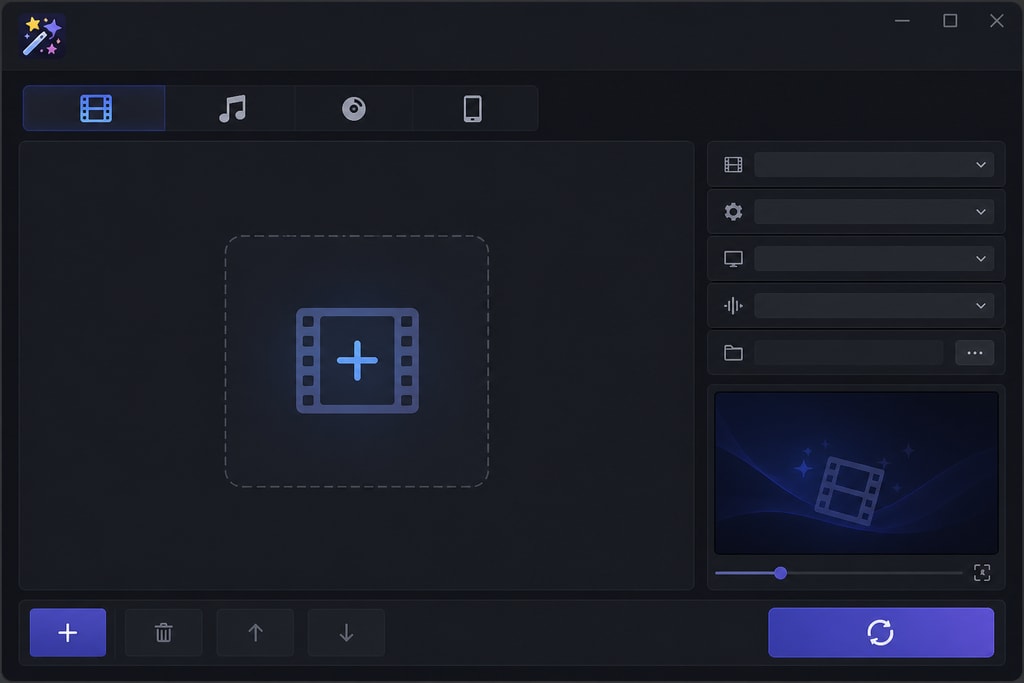
Here's a step-by-step guide to installing KaraMagic Free:
- Download the Installer: Visit the KaraMagic Free download page and start your download.
- Open the Installer: Once downloaded, find the installer file in your Downloads folder and open it.
- Drag to Applications: Follow the prompt to drag KaraMagic Free into your Applications folder.
- Launch the App: Open KaraMagic Free from your Applications folder to begin using it.

Creating Your First Karaoke Video
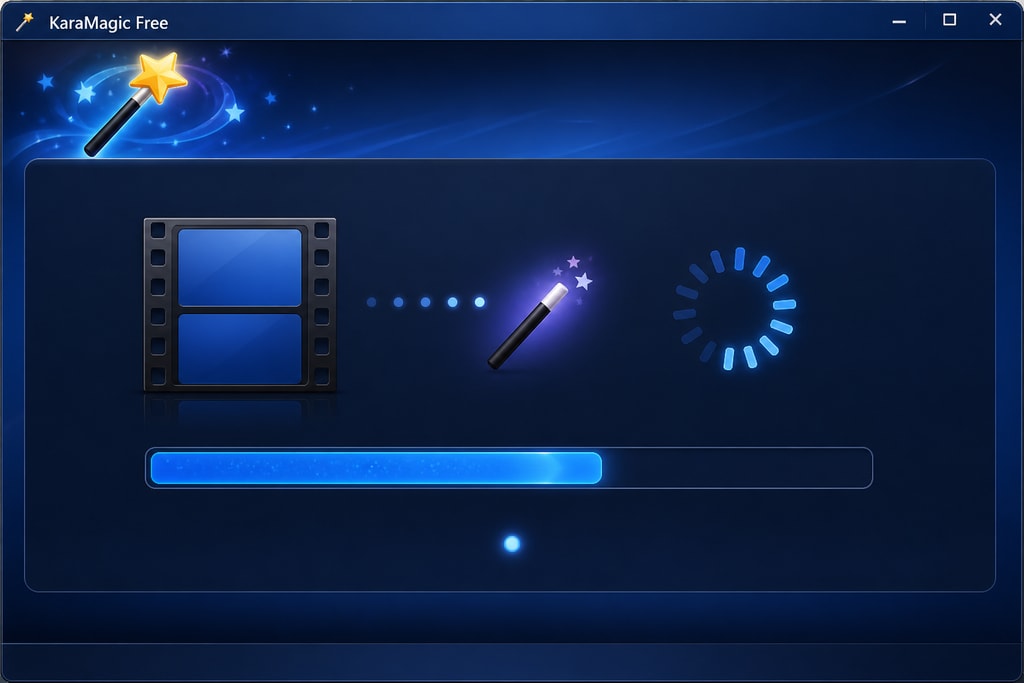
Step 1: Import Your Media
- Add Video or Audio: Click 'Add Media' and choose your desired video or audio file.
- Popular Formats Supported: Ensure your files are in compatible formats like MP3, MP4, or WAV.
Step 2: Conversion and Transcription
- Start the Conversion: Hit 'Convert' to allow KaraMagic Free to process the file.
- Vocal Extraction: Utilize AI technology for accurate vocal removal.
Step 3: Preview and Export
- Quality Check: Preview your video, paying attention to lyric timing and video quality.
- Export Options: Choose the format and location for saving your karaoke video.

Tips for Optimal Results
- Select High-Quality Source Files: Better inputs lead to superior outputs in video quality.
- Clear Vocals Preferred: Songs with distinct vocal tracks yield better separations.
- Verify Lyrics: Double-check transcriptions to correct any discrepancies.
Exploring Advanced Features with KaraMagic Pro
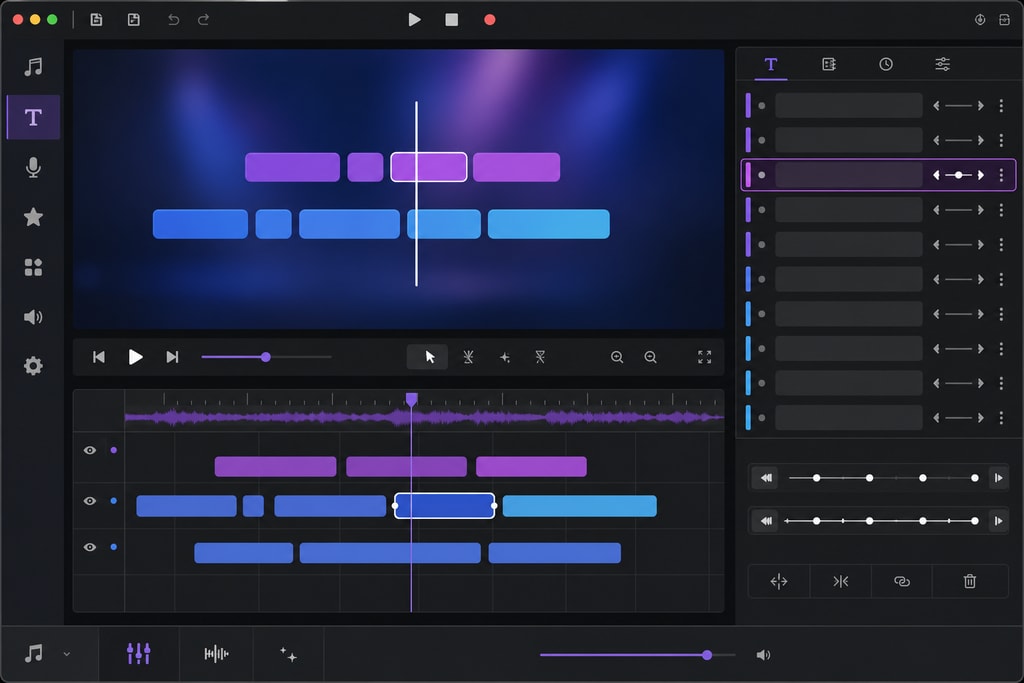
For users seeking deeper control over their karaoke projects, KaraMagic Pro offers enhanced functionality:
- Edit Lyrics Easily: Adjust transcribed lyrics with a user-friendly interface.
- Custom Backgrounds: Personalize with unique images or videos.
- Batch Processing: Efficiently convert multiple files at once to save time.
Discover more about these features on the KaraMagic Pro page.

Practical Examples and Use Cases
Create Karaoke Tracks for Events
Consider making custom tracks for parties or events to engage attendees.
Social Media Content
Enhance your social media presence by creating unique, shareable karaoke content.
Educational Purposes
Utilize karaoke for language learning by focusing on lyric comprehension and pronunciation.
Mistakes to Avoid
- Ignoring System Requirements: Ensure your Mac meets or exceeds the necessary specifications.
- Overlooking Backups: Regularly save your progress to avoid data loss.
- Skipping Previews: Always review your video before final export to ensure quality.
FAQ Section
Does KaraMagic Free require an internet connection?
No, all processes are completed offline on your Mac.
Can I use KaraMagic Free on an Intel-based Mac?
It's designed primarily for Apple Silicon. Performance may vary on Intel machines.
Is there a watermark on exported videos?
KaraMagic Free exports do include a watermark. Consider Pro if this is an issue.
What file formats are supported?
KaraMagic Free supports popular formats such as MP3, MP4, and WAV.
Concluding Thoughts
By following this detailed guide, you're well-equipped to produce captivating karaoke videos on your Mac. Whether you're hosting a karaoke night or creating content for your channels, KaraMagic Free gives you the tools needed for success.
Start your journey today by downloading KaraMagic Free.