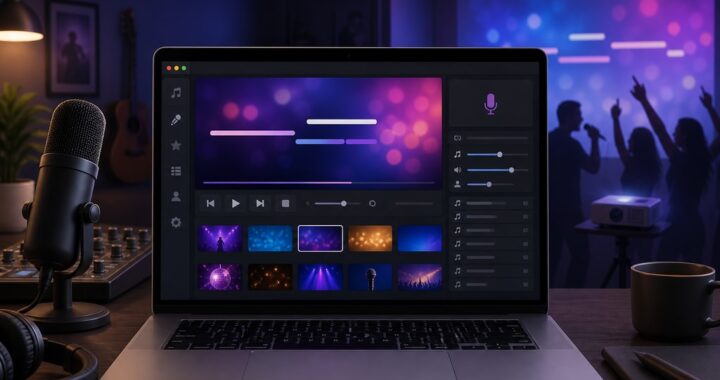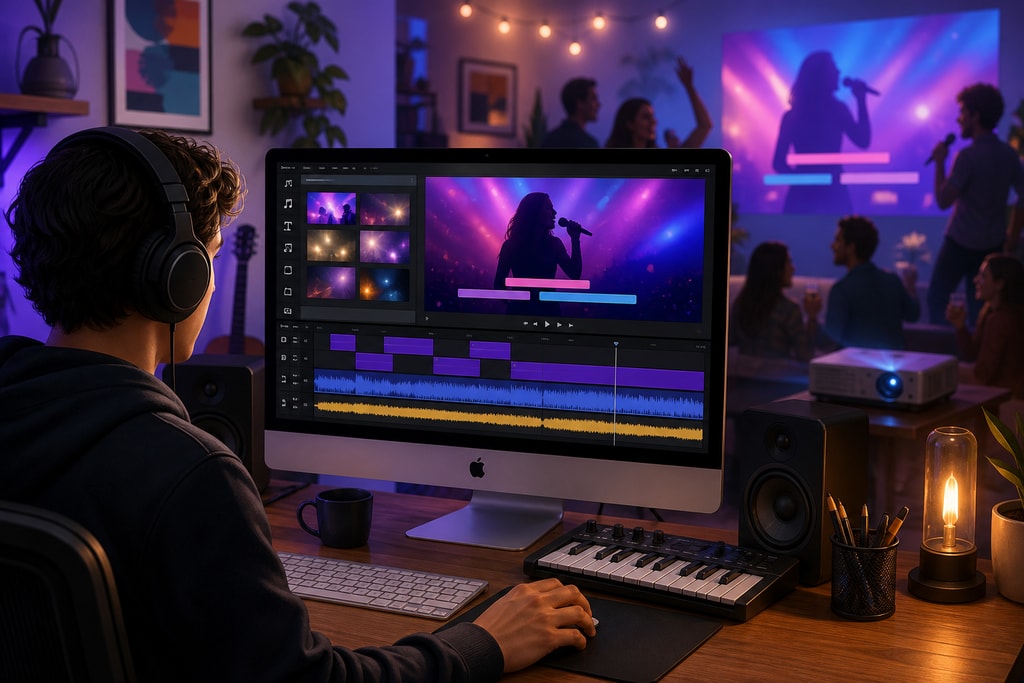
Creating karaoke videos on your Mac has never been easier, thanks to KaraMagic's suite of AI-powered tools. Whether you're a karaoke enthusiast, a content creator, or a music educator, KaraMagic provides a seamless experience for transforming your favorite songs into engaging karaoke videos. This guide will walk you through the entire process, from installation to exporting your final video.
Why Choose KaraMagic for Karaoke Video Creation?
KaraMagic stands out in the realm of karaoke video creation for several reasons:
- Offline Functionality: All processing occurs locally on your Mac, ensuring privacy and eliminating the need for an internet connection.
- AI-Powered Features: KaraMagic utilizes artificial intelligence for vocal removal, lyric transcription, and precise timing synchronization.
- User-Friendly Interface: Designed with simplicity in mind, KaraMagic allows users of all skill levels to create professional-quality karaoke videos.
Practical Examples of KaraMagic Usage
Imagine transforming a new hit song into a karaoke video for your next party or preparing a personalized karaoke lesson for your music students—all possible with KaraMagic's versatile features.
Getting Started with KaraMagic
System Requirements
Before installing KaraMagic, ensure your Mac meets the following requirements:
- Operating System: macOS 11.0 or later
- Processor: Apple Silicon (M1 or newer)
- RAM: Minimum 8 GB
- Storage: At least 2 GB of free space
Installation Steps
- Download KaraMagic: Visit the KaraMagic homepage and download the version that suits your needs.
- Install the Application: Open the downloaded file and follow the on-screen instructions to install KaraMagic on your Mac.
- Launch KaraMagic: Once installed, open the application to begin creating your karaoke videos.
Installation Tips
- Double-check your Mac's compatibility with the system requirements to avoid installation issues.
- Keep your software up to date for optimal performance and new features.
Creating Your First Karaoke Video
Step 1: Import Your Media
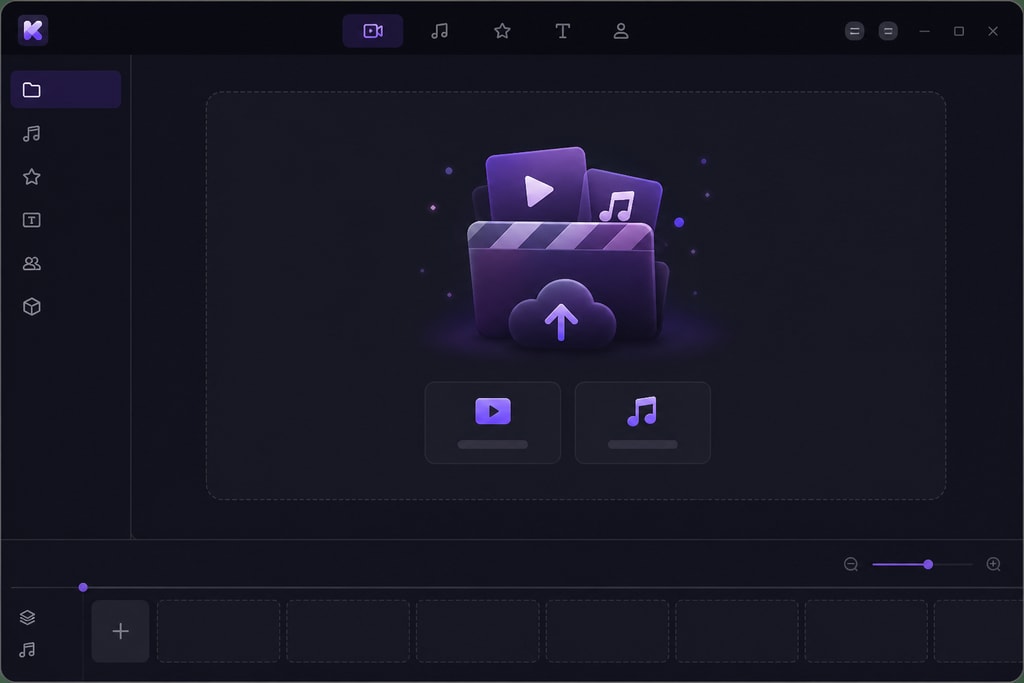
KaraMagic supports both video and audio files. To import your media:
- Drag and Drop: Simply drag your file into the KaraMagic interface.
- Browse: Click on the 'Add File' button and select your desired media.
Step 2: AI Processing
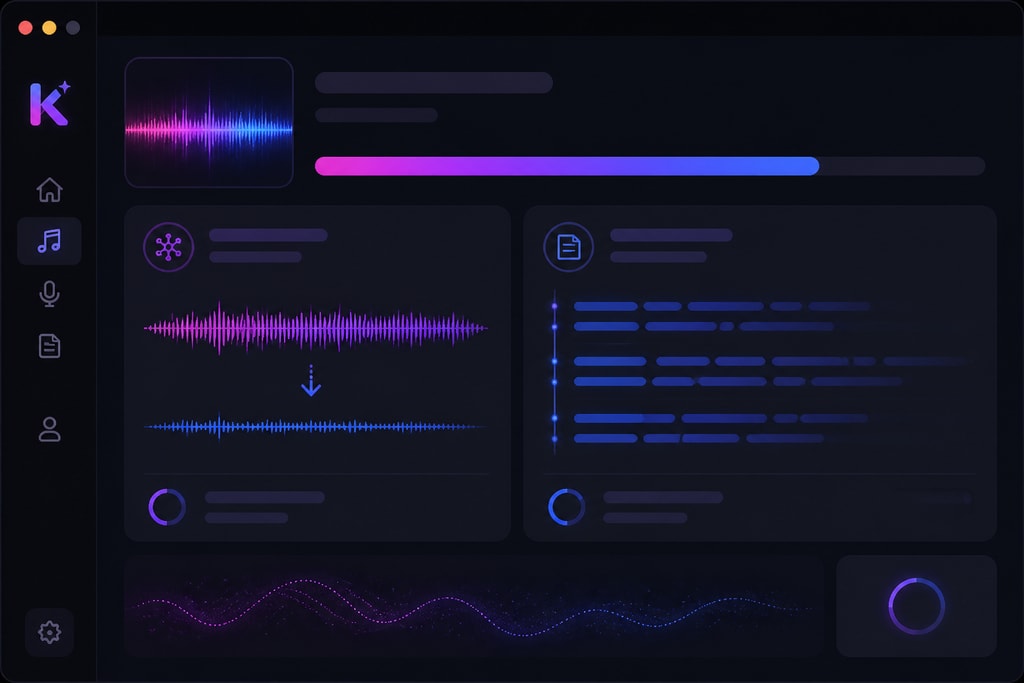
Upon importing, KaraMagic will automatically:
- Remove Vocals: Isolate the instrumental track by removing the vocal components.
- Transcribe Lyrics: Utilize AI to transcribe the lyrics from the audio.
- Synchronize Timing: Align the transcribed lyrics with the instrumental track for accurate on-screen display.
Mistakes to Avoid
- Ensure your source file is of high quality for the best AI processing results.
- Verify the lyrics transcription for accuracy, adjusting where necessary.
Step 3: Customize Your Video (Pro Version)
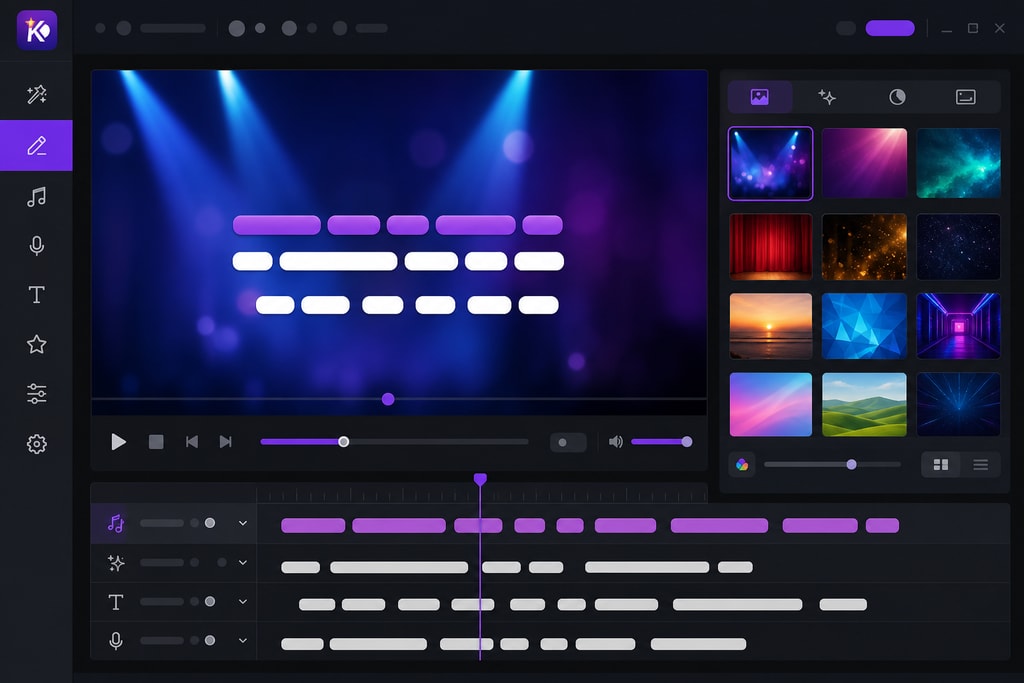
If you're using KaraMagic Pro, you have additional customization options:
- Edit Lyrics: Fine-tune the transcribed lyrics for accuracy.
- Choose Backgrounds: Select from various backgrounds or upload your own to enhance the visual appeal.
- Batch Processing: Process multiple videos simultaneously to save time.
Step 4: Export Your Karaoke Video
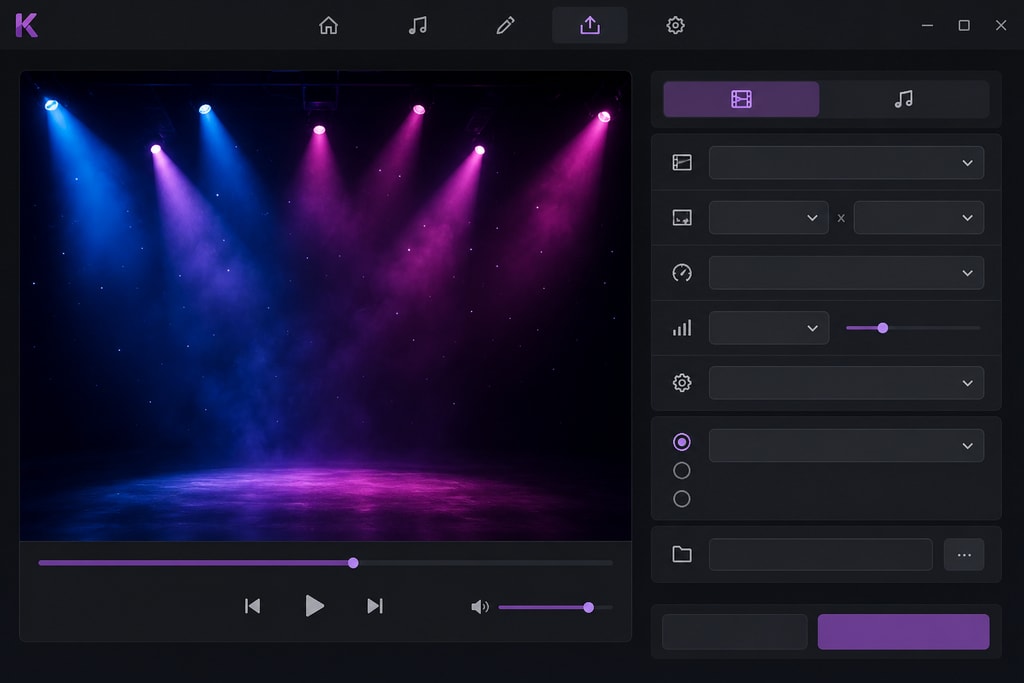
Once satisfied with your video:
- Preview: Watch the video within KaraMagic to ensure everything is in place.
- Export: Click on the 'Export' button to save your karaoke video in your desired format.
Tips for Optimal Karaoke Video Creation
- Use High-Quality Source Files: The better the quality of your original media, the better the final output.
- Review Transcriptions: While KaraMagic's AI is powerful, always review the transcribed lyrics for any inaccuracies.
- Experiment with Backgrounds: Custom backgrounds can make your videos more engaging and personalized.
Decision Criteria for Customization
Decide which features are necessary based on your needs—whether you require simple karaoke videos or a fully customized experience with different backgrounds and precise lyric editing.
Frequently Asked Questions
Q: Can I use KaraMagic on an Intel-based Mac?
A: Currently, KaraMagic is optimized for Apple Silicon Macs (M1 or newer) and does not support Intel-based Macs.
Q: Does KaraMagic require an internet connection?
A: No, all processing is done locally on your Mac, ensuring privacy and offline functionality.
Q: Is there a free version of KaraMagic available?
A: Yes, KaraMagic Free offers basic features to get you started with karaoke video creation.
Q: How can I improve lyric transcription accuracy?
A: Use high-quality audio files and double-check automated transcriptions for corrections.
Q: What export formats are supported?
A: KaraMagic supports a variety of export formats including MP4, MKV, and AVI.
Sources and Further Reading
- KaraMagic Homepage – Learn more about features and updates.
- KaraMagic Free – Start creating karaoke videos today.
- MacWorld – For the latest updates and reviews on Mac software.
- TechRadar – Reviews and comparisons of the best software for Mac.
By following this guide, you'll be well-equipped to create professional-quality karaoke videos on your Mac using KaraMagic. Whether for personal enjoyment or professional use, KaraMagic provides the tools you need to bring your karaoke creations to life.