Introduction
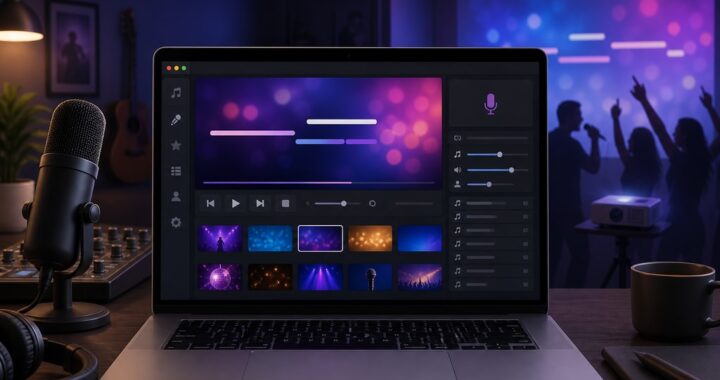
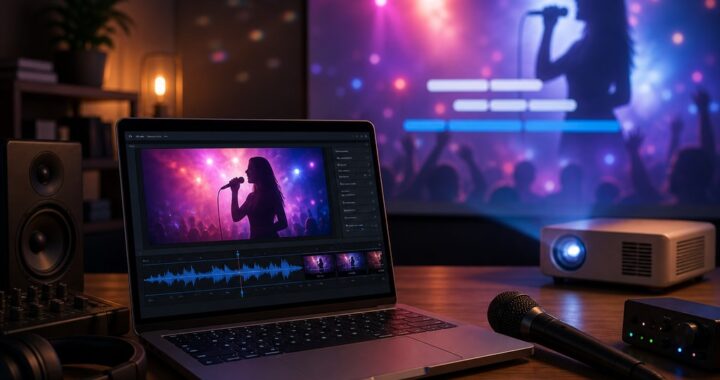
Creating karaoke videos on your Mac has become more accessible and efficient with KaraMagic. Whether you’re a karaoke enthusiast, music educator, or content creator, KaraMagic provides the tools needed to transform your favorite songs into engaging karaoke videos. This guide dives deep into the process, from installation to advanced customization, ensuring you produce professional-quality karaoke videos easily.
Why Choose KaraMagic?
KaraMagic excels as a leading choice for Mac users due to its intuitive interface and robust feature set. Unlike many cloud-based solutions, KaraMagic operates entirely offline, protecting your data privacy and ensuring functionality without an internet connection. Its optimization for Apple Silicon Macs ensures fast and efficient performance, making it ideal for both professional and personal use.
Getting Started with KaraMagic
System Requirements
Before installing KaraMagic, ensure your Mac meets the following requirements:
- Operating System: macOS 11 (Big Sur) or later
- Processor: Apple Silicon (M1/M2/M3/M4)
- Memory: Minimum 4GB RAM; 8GB recommended
- Storage: At least 1GB of free space
Installation Steps
- Download KaraMagic:
- Visit the KaraMagic Free page to download the free version.
- For additional features, consider purchasing KaraMagic Pro.
- Install the Application:
- Open the downloaded
.dmgfile. - Drag the KaraMagic app into your Applications folder.
- Launch KaraMagic:
- Navigate to your Applications folder and double-click on KaraMagic to open it.
Creating Your First Karaoke Video
Step 1: Import Your Media
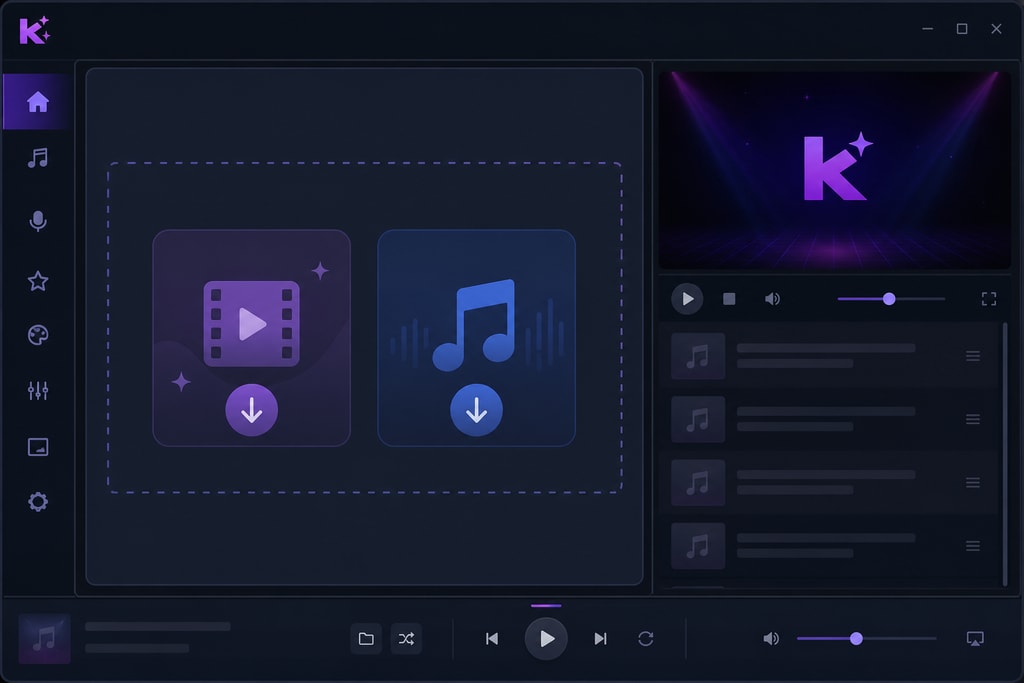
- Video Files:
- Click ‘Add Video’ to select a music video file from your Mac.
- Supported formats: MP4, MOV, AVI.
- Audio Files:
- Click ‘Add Audio’ and choose an audio file (e.g., MP3) from your library.
- Ensure the audio file is high quality for best results.
Step 2: AI Processing
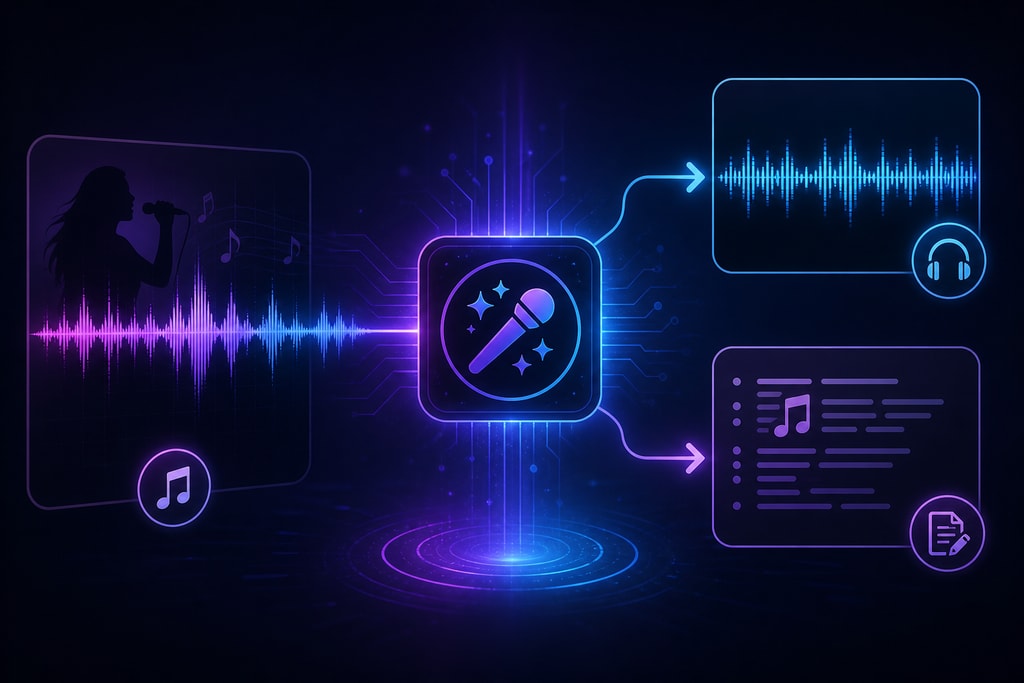
KaraMagic employs advanced AI to streamline your workflow:
- Remove Vocals:
- Automatically separates vocals from the instrumental track, creating a karaoke-style backing track.
- Transcribe Lyrics:
- Precise transcription and synchronization of lyrics with the audio track.
- Double-check the transcription for accuracy.
Step 3: Customize Your Video
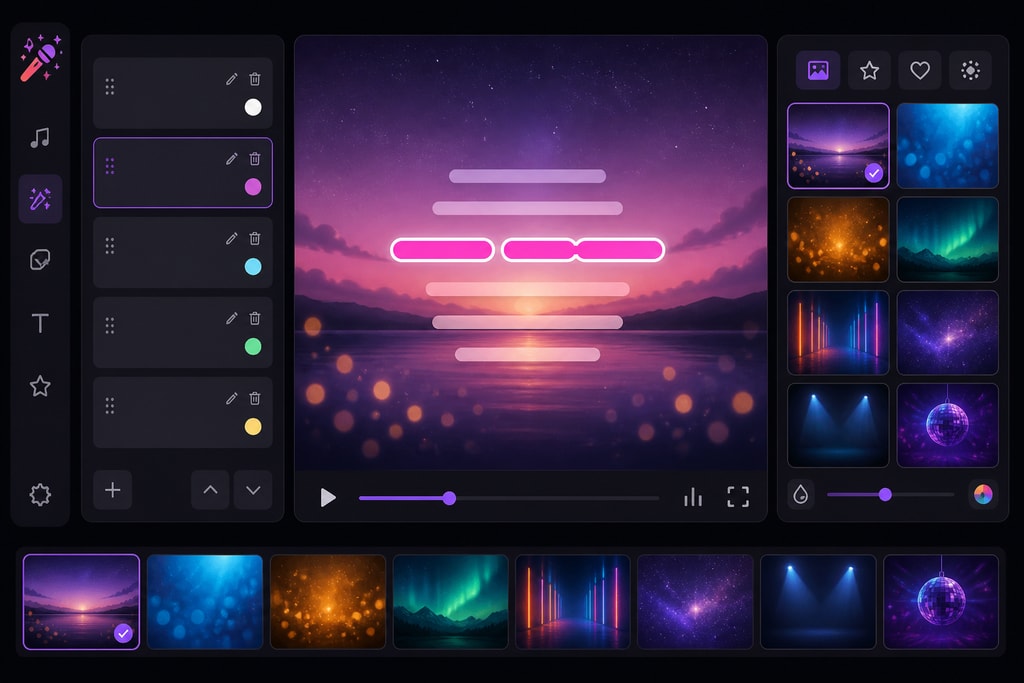
- Edit Lyrics:
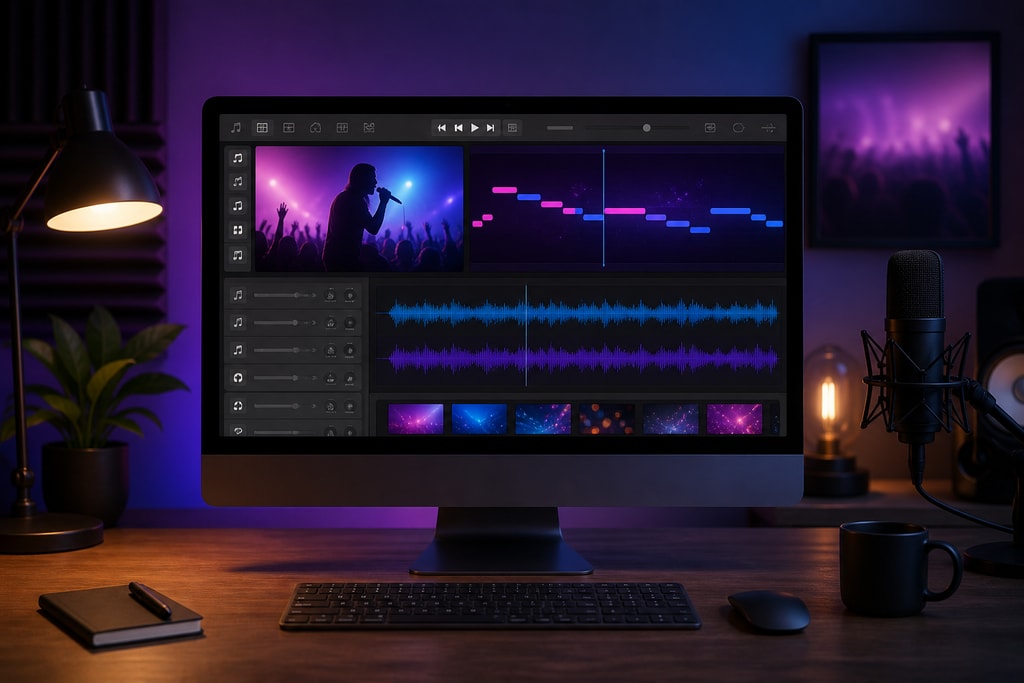
- Use the built-in editor to adjust the transcribed lyrics for timing and accuracy.
- Choose Backgrounds:
- Personalize your videos with custom images, colors, or video backgrounds.
- Adjust Timing:
- Fine-tune the timings to ensure lyrics align perfectly with the audio.
Step 4: Export Your Karaoke Video
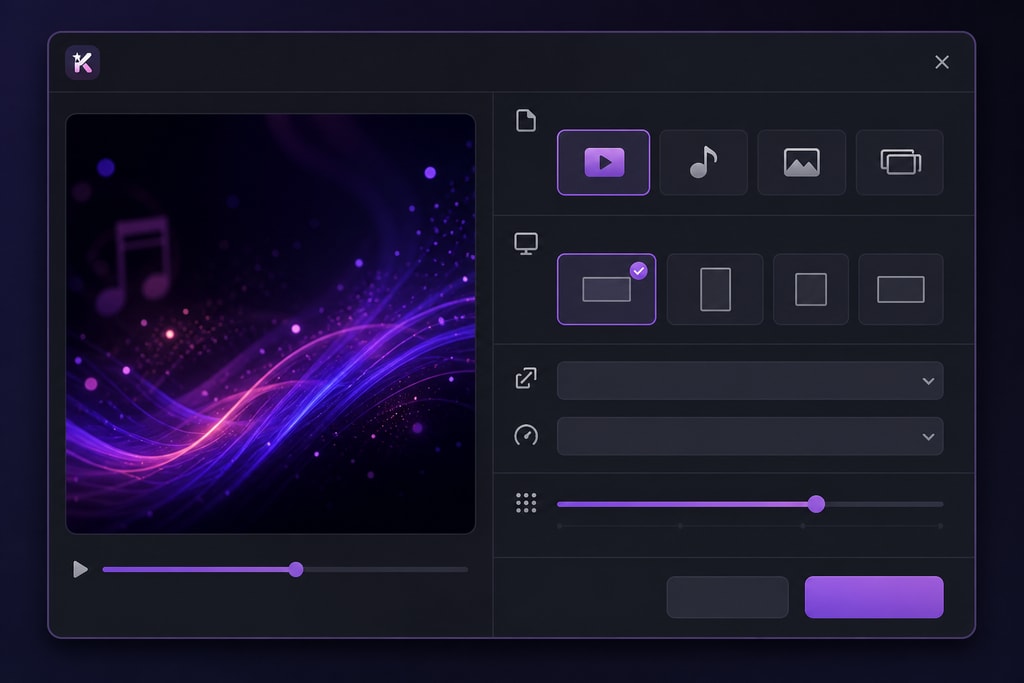
- Format Options:
- Choose from popular video formats and resolutions to suit your needs.
- Save Location:
- Confirm your desired save location on your Mac.
- Export:
- Click ‘Export’ to generate your karaoke video.
Advanced Features in KaraMagic Pro
With KaraMagic Pro, take advantage of enhanced features that simplify and enhance your projects:
- Batch Processing:
- Save time by processing multiple videos at once.
- Watermark-Free Exports:
- Produce professional videos without watermarks.
- Enhanced Editing Tools:
- Access tools for precise lyric synchronization and further customization.
Practical Tips for Success
- Use Clear Source Files:
- Start with high-quality audio and video files to ensure excellent output quality.
- Verify Lyric Accuracy:
- Manually check transcribed lyrics and adjust as needed.
- Experiment with Backgrounds:
- Test various backgrounds to discover the most visually appealing option for your viewers.
- Keep It Updated:
- Regularly update KaraMagic for access to the latest features and bug fixes.
Mistakes to Avoid
- Using Low-Quality Audio:
- Low-quality files can result in poor vocal removal and transcription.
- Ignoring Timing Adjustments:
- Ensure your lyrics are perfectly synced to improve viewer engagement.
- Overlooking Backup:
- Regularly backup your projects to avoid data loss.
Karaoke Video Ideas
- Thematic Playlists:
- Create themed playlists for specific occasions, such as parties or holidays.
- Educational Content:
- Use karaoke videos for language learning or music education.
Frequently Asked Questions (FAQ)
Q: Can I use KaraMagic on an Intel-based Mac?
A: No, KaraMagic is only compatible with Apple Silicon Macs running macOS 11 or later.
Q: Does KaraMagic require an internet connection?
A: No, KaraMagic operates completely offline, ensuring your data privacy and accessibility anywhere.
Q: Is there a free trial for KaraMagic Pro?
A: There is no free trial, but you can explore KaraMagic Free to start with basic features.
Q: Can I customize the font and color of the lyrics?
A: Yes, KaraMagic Pro allows extensive customization of font, size, color, and style of the lyrics.
Q: How do I update KaraMagic?
A: KaraMagic is a fully offline app so it does not check for automatic updates. You have the freedom to and can download a new version from the KaraMagic website any time you wish. Your Pro version license key will work with future versions of the same major version.
Sources and Further Reading
- KaraMagic Official Website
- KaraMagic Free Download
- KaraMagic Pro Purchase
- Apple Support on macOS Compatibility
- Guide to Audio File Formats
With this comprehensive guide, you have all the tools and knowledge needed to create outstanding karaoke videos on your Mac. Whether it’s for casual parties or professional use, KaraMagic empowers you to produce high-quality videos with ease.