Introduction
Lyric videos have surged in popularity on YouTube, offering not just a visual representation of songs but also enhancing audience engagement and providing an avenue for artists to connect with fans. Their ability to improve searchability and accessibility makes them an invaluable tool in the digital music era. With LyricMagic, crafting professional lyric videos is more accessible than ever. This guide provides a step-by-step approach to creating high-quality lyric videos with LyricMagic.
Why Choose LyricMagic?
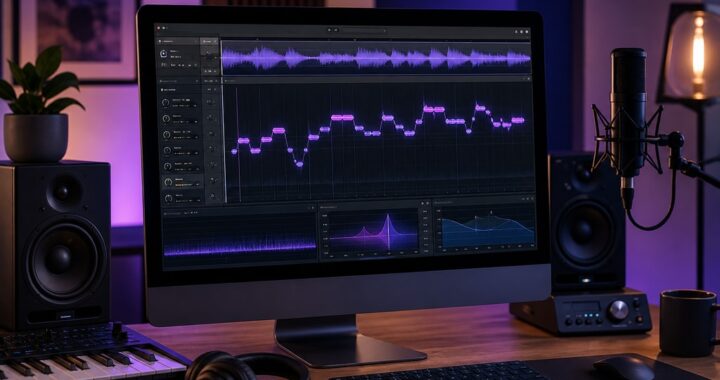
When it comes to lyric video creation, LyricMagic stands out as a specialized Mac application crafted for this exact purpose. Unlike many cloud-based tools, LyricMagic ensures privacy by operating offline. Here's what makes it unique:
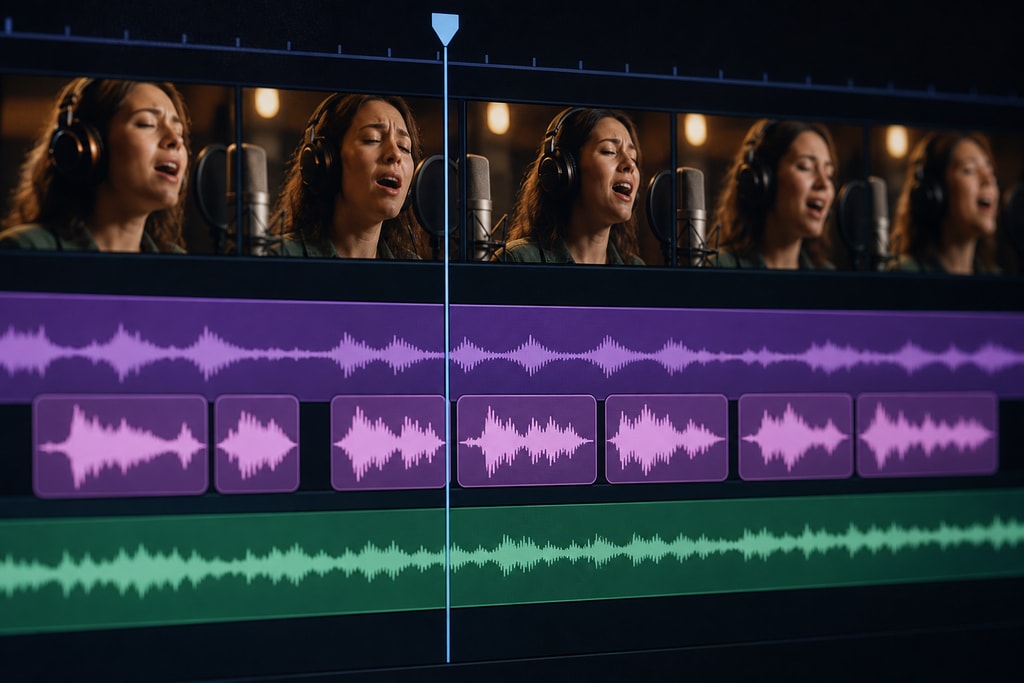
- AI-Driven Lyric Transcription and Timing: This feature offers automatic transcription of lyrics, syncing them with audio precisely.
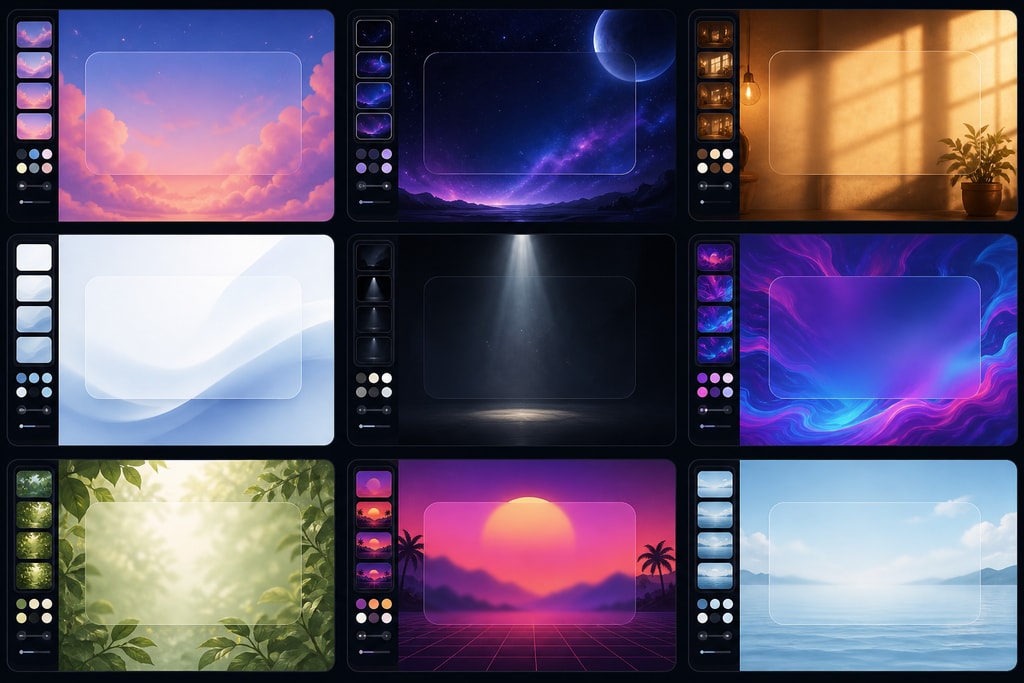
- Customizable Backgrounds: Personalize the visual backdrop to align with the song's emotion and style.
- Lyric Editing Capabilities: Fine-tune lyrics for precision in both accuracy and timing.
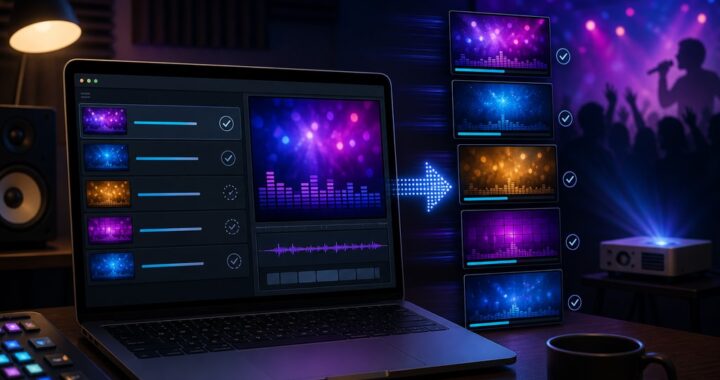
- Batch Processing: Conveniently handle multiple lyric videos at once, ideal for larger projects.
Explore more on the LyricMagic Pro page to understand its comprehensive offerings.
Getting Started with LyricMagic
System Requirements
Ensure your Mac meets these requirements before installing LyricMagic:
- Operating System: macOS 11.0 or later
- Processor: Apple Silicon or Intel-based Mac
- Memory: A minimum of 8GB RAM
- Storage: At least 500MB of available disk space
Installation
- Download LyricMagic: Access the official LyricMagic page and download the Free version.
- Install the Application: Follow the on-screen instructions to install LyricMagic.
- Launch LyricMagic: Open the application to start creating lyric videos.
Creating Your First Lyric Video
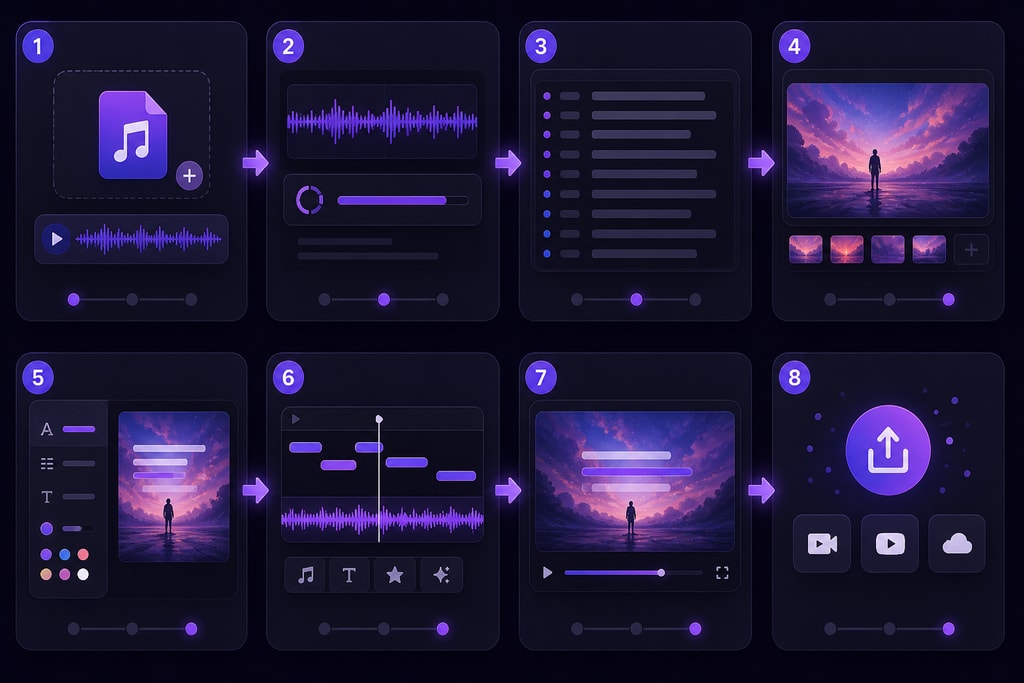
Step 1: Import Your Audio File
- Open LyricMagic: Launch the application on your Mac.
- Import Audio: Click 'Import Audio' and choose the song file. LyricMagic supports formats like MP3, WAV, and FLAC.
Step 2: Automatic Lyric Transcription and Timing
- AI Processing: LyricMagic automatically transcribes lyrics and synchronizes them with audio using advanced AI.
- Review Transcription: Manually review the transcription to ensure perfection, despite high AI accuracy.
Step 3: Customize the Visuals
- Choose a Background: Select a background that complements the song's mood. Consider using LyricMagic's customizable options.
- Adjust Text Appearance: Modify font style, size, and color for readability, ensuring contrast between text and background.
Step 4: Fine-Tune Lyric Timing
- Edit Timing: Adjust lyrical timing for perfect sync with vocals. LyricMagic offers intuitive interfaces for precision.
- Preview Changes: Use the preview feature to confirm lyrics align correctly with audio.
Step 5: Export the Lyric Video
- Select Export Settings: Choose the desired resolution and format, recommending 1080p for YouTube.
- Export Video: Click 'Export' to generate the final video file.
Best Practices for Engaging Lyric Videos
Creating compelling lyric videos involves more than displaying words. Follow these practices:
- Ensure Perfect Sync: Align lyrics perfectly with vocals. Even slight delays can be disruptive. Use LyricMagic's fine-tuning.
- Maintain Readability: Use clear fonts and high contrast for readability. Avoid decorative styles; ensure text is visible against the background.
- Choose Appropriate Backgrounds: Match visuals with the song's genre and mood. Avoid overly busy backgrounds.
- Incorporate Subtle Motion: Add subtle motion like slow zoom or gentle pans. Avoid excessive movement that distracts.
- Test on Multiple Devices: Ensure readability and visual appeal across devices, especially mobile.
Enhancing Video Engagement
Beyond best practices, consider enhancing viewer engagement through:
- Interactive Visuals: Incorporate lyric highlights or animated effects during key parts of a song to emphasize particular lyrics or messages.
- Brand Consistency: Integrate elements that reflect your brand or artist identity, such as logos or consistent color schemes.
- Call to Action: Include a CTA at the end, encouraging viewers to subscribe or engage further with your content.
Common Mistakes to Avoid
Avoid these pitfalls to ensure high-quality lyric videos:
- Overcomplicating Visuals: Simplicity often leads to professionalism. Focus on the song's message.
- Ignoring Aspect Ratios: Ensure a 16:9 aspect ratio to avoid black bars.
- Neglecting Audio Quality: Use the best audio quality to enhance the video’s overall impact.
Tools and Add-Ons
Consider leveraging these additional tools:
- Video Editing Software: Complement LyricMagic with video editors for added transitions or effects.
- Graphics Software: Use platforms like Canva to create distinctive backgrounds or text designs.
Internal resources such as LyricMagic Free and LyricMagic Pro provide additional insights and enhancements to your workflow.
Frequently Asked Questions (FAQ)
Q: Can I use LyricMagic for commercial projects?
A: Yes, LyricMagic Pro supports commercial use, allowing professional-quality production.
Q: Does LyricMagic support batch processing?
A: Yes, the Pro version offers batch processing, letting you create multiple videos simultaneously.
Q: Is an internet connection required to use LyricMagic?
A: No, LyricMagic functions entirely offline, ensuring your privacy.
Q: Can I customize fonts and visuals in LyricMagic?
A: Absolutely, LyricMagic offers comprehensive customization for text and visual elements.
Q: How do I ensure my video reaches more audiences on YouTube?
A: Focus on SEO practices, using relevant keywords in descriptions and titles to enhance discoverability.
For more information, visit LyricMagic Free or explore the professional LyricMagic Pro offerings.
Conclusion
Creating lyric videos with LyricMagic merges creativity with technology, enabling effective engagement with music fans. By following this guide, you are equipped to produce professional videos that resonate with audiences and showcase musical artistry compellingly.