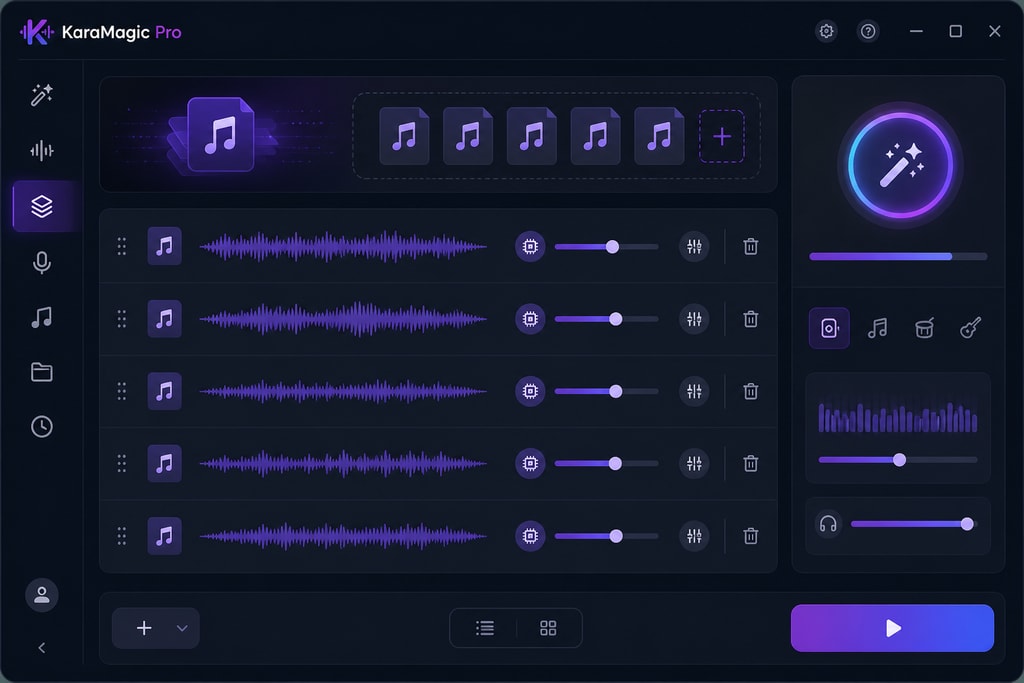
Creating karaoke videos can be a time-consuming endeavor, especially when dealing with multiple tracks. However, with the advent of advanced tools like KaraMagic Pro, batch processing has become a game-changer, enabling creators to produce high-quality karaoke videos efficiently. This guide explores how to leverage KaraMagic Pro's batch processing features to enhance your productivity.
Understanding Batch Processing in Karaoke Video Creation
Batch processing refers to the ability to process multiple files simultaneously, applying the same set of operations to each. In the context of karaoke video creation, this means converting several audio tracks into karaoke videos in one go, rather than handling them individually.
Benefits of Batch Processing
- Time Efficiency: Process multiple files concurrently, significantly reducing the time spent on repetitive tasks.
- Consistency: Ensure uniform quality and style across all videos by applying the same settings.
- Reduced Manual Effort: Minimize the need for manual intervention, allowing you to focus on creative aspects.
Mistakes to Avoid
- Ignoring File Organization: Disorganized files can lead to confusion and errors. Always have a dedicated folder for your projects.
- Overlooking Quality Checks: Skipping reviews can result in inconsistencies in the final output.
- Neglecting Software Updates: Missing updates might mean you lack access to new features and critical bug fixes.
Getting Started with KaraMagic Pro
KaraMagic Pro is a Mac desktop application designed for offline karaoke video creation. It offers features like AI-driven vocal removal, lyric transcription, and batch processing, all optimized for Apple Silicon Macs.
Key Features
- AI Vocal Removal: Isolate instrumental tracks by removing vocals from audio files.
- Lyric Transcription and Timing: Automatically transcribe lyrics and synchronize them with the music.
- Customizable Backgrounds: Personalize videos with various background options.
- Batch Processing: Convert multiple audio files into karaoke videos simultaneously.
Step-by-Step Guide to Batch Processing with KaraMagic Pro
1. Preparing Your Audio Files
Ensure all audio files are in a compatible format (e.g., MP3, WAV) and organized in a dedicated folder for easy access.
2. Launching KaraMagic Pro
Open KaraMagic Pro on your Mac. If you haven't installed it yet, download it from the KaraMagic Pro page.
3. Accessing the Batch Processing Feature
Navigate to the 'Batch Processing' section within the application. This feature allows you to add multiple audio files for simultaneous processing.
4. Configuring Settings
- Vocal Removal: Choose the AI vocal removal strength based on the audio complexity.
- Lyric Transcription: Ensure the automatic transcription feature is enabled.
- Backgrounds: Select a default background or customize it for all videos.
- Output Format: Specify the desired video format and resolution.
5. Adding Audio Files
Click on 'Add Files' and select the audio tracks you wish to process. You can also drag and drop files into the batch processing window.
6. Initiating the Batch Process
Once all settings are configured, click 'Start Batch Process'. KaraMagic Pro will process each file sequentially, applying the specified settings.
7. Reviewing and Exporting Videos
After processing, review each video to ensure quality. Make any necessary adjustments before exporting the final versions.
Best Practices for Efficient Batch Processing
- Organize Files: Maintain a well-structured folder system to streamline the selection process.
- Consistent Settings: Use uniform settings across all files to ensure consistency.
- Quality Checks: Review each output to catch any discrepancies early.
- System Resources: Ensure your Mac has sufficient resources to handle batch processing without performance issues.
- Templates and Shortcuts: Create templates for various styles and learn keyboard shortcuts to expedite the workflow.
Advanced Tips for Maximizing Productivity
- Template Creation: Develop templates for different genres or styles to quickly apply settings.
- Keyboard Shortcuts: Familiarize yourself with KaraMagic Pro's shortcuts to speed up navigation.
- Regular Updates: Keep the software updated to benefit from the latest features and improvements.
Topic-Specific Advice
- Genre Considerations: Different genres might require unique transcription settings or background styles—customize accordingly.
- Vocal Clarity: Some tracks have more intricate vocal lines. Test and adjust vocal removal settings for best results.
Frequently Asked Questions (FAQ)
Q1: Can I edit lyrics manually after batch processing?
A: Yes, KaraMagic Pro allows manual lyric editing post-processing to ensure accuracy.
Q2: Does batch processing support different audio formats?
A: KaraMagic Pro supports various audio formats, including MP3 and WAV.
Q3: How long does batch processing take?
A: Processing time depends on the number of files and their lengths but is generally faster than individual processing.
Q4: Is an internet connection required for batch processing?
A: No, KaraMagic Pro operates entirely offline, ensuring privacy and reliability.
Q5: Can I customize backgrounds for each video in batch processing?
A: Yes, you can set a default background or customize each video individually.
Q6: What should I do if processing fails?
A: Check file formats, adjust settings, and ensure your software is up-to-date before reattempting.
Conclusion
Batch processing with KaraMagic Pro revolutionizes karaoke video creation by enhancing efficiency and consistency. By following the steps outlined above, you can streamline your workflow and produce high-quality karaoke videos with ease. Explore the full potential of KaraMagic Pro by visiting the KaraMagic Pro page and elevate your karaoke video production today.
For more insights, visit our KaraMagic homepage and discover further guides that could transform your creative process.
Sources and Further Reading
- KaraMagic Pro
- KaraMagic Homepage
- Lyric Video Trends in 2026 | Threnic Guides
- AI Video Trends 2026: The 6 Shifts Defining the Year | Cliprise
- Batch Processing in 2026: Creating 500 Product Demo Videos in One Week Using AI | Joyspace