Creating high-quality lyric videos efficiently is essential for artists and content creators aiming to engage audiences without compromising on production value. LyricMagic, a Mac desktop application, offers a suite of features designed to streamline this process. This guide provides actionable tips to maximize quality and speed in lyric video production using LyricMagic.
Understanding LyricMagic's Capabilities
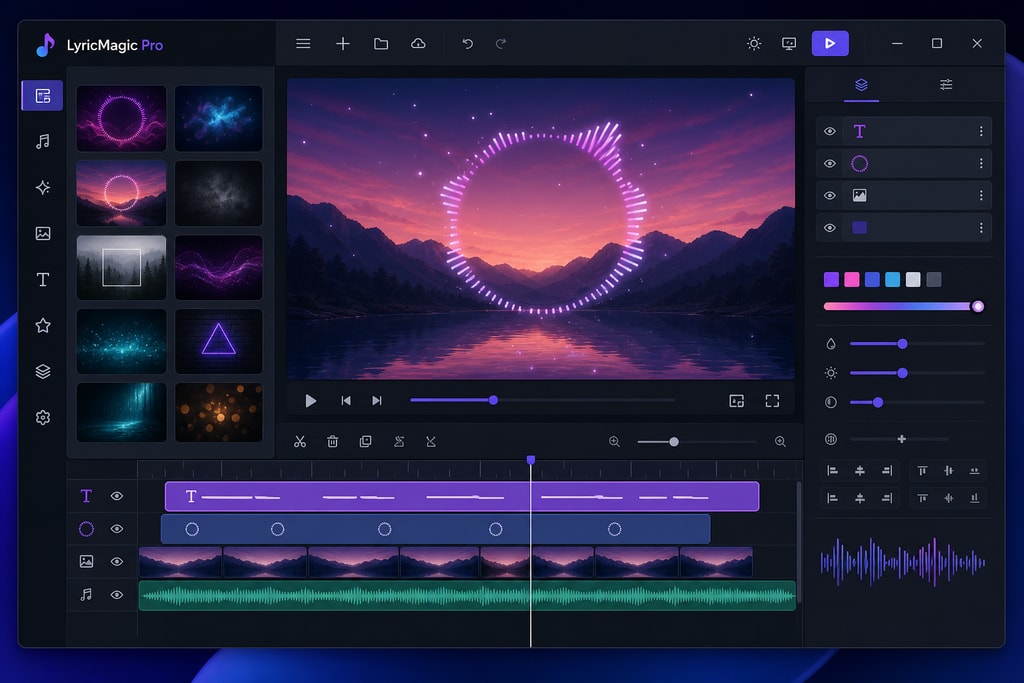
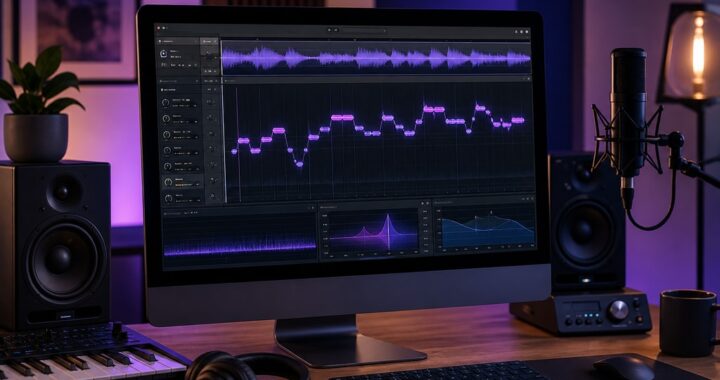
LyricMagic specializes in converting audio files into YouTube-ready lyric videos through AI-driven lyric transcription and timing. The Pro version enhances these capabilities with advanced features such as lyric editing, custom backgrounds, and batch creation. Operating entirely offline ensures user privacy and eliminates the need for internet connectivity during the creation process.
Decision Criteria: Choose LyricMagic Pro for enhanced features if you regularly create lyric videos, need batch processing, or want more control over visual elements.
Mistakes to Avoid: Avoid relying solely on AI transcription without manual review, as it might result in errors due to unique vocal styles or accents.
Preparing Your Audio and Lyrics
Before diving into video creation, ensure your audio and lyrics are well-prepared:
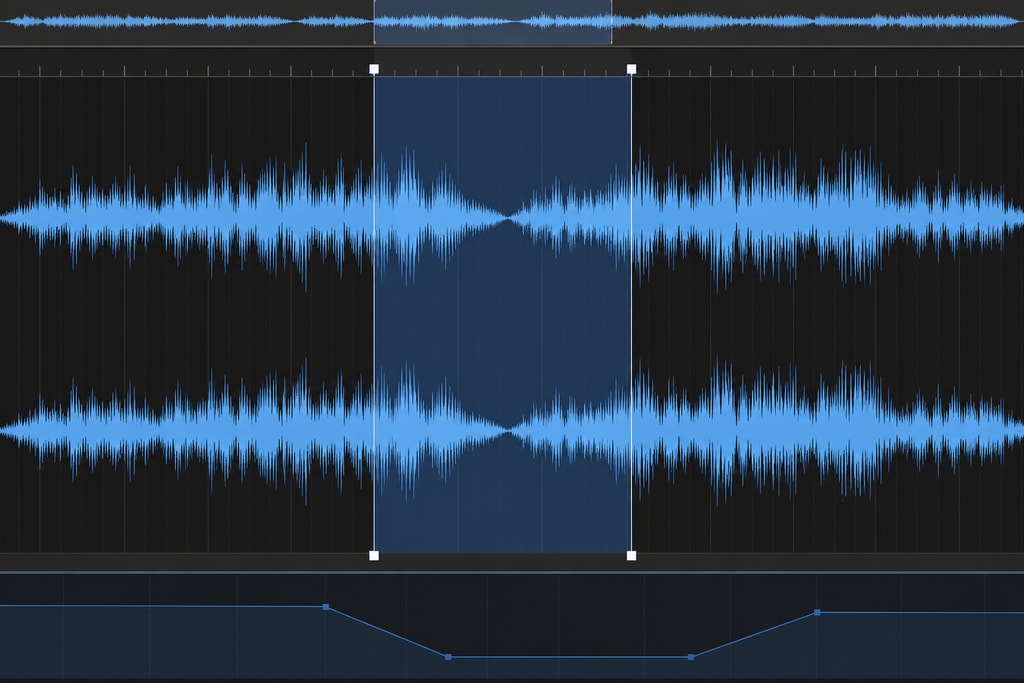
- High-Quality Audio Files: Use mastered stereo files in WAV or high-bitrate MP3 formats to maintain audio clarity.
- Accurate Lyrics: Have a text file with correctly transcribed lyrics, marking any non-sung sections like instrumentals or breakdowns.
Practical Tip: If your lyrics contain complex structures or rapid verses, consider line-by-line transcription verification for accuracy.
Utilizing LyricMagic's AI Transcription
LyricMagic's AI transcription feature automatically converts audio into synchronized lyrics, saving significant time. To optimize this process:
- Clear Vocals: Ensure the vocals are prominent in the mix to improve transcription accuracy.
- Manual Review: After transcription, review the lyrics for any errors and make necessary corrections using LyricMagic Pro's editing capabilities.
Advanced Advice: For bilingual songs, separate the languages in transcription files to ensure clarity and better user experience.
Designing Engaging Visuals

Visual appeal is crucial in lyric videos. Consider the following:
- Font Selection: Choose legible fonts that align with the song's mood. For instance, a fun summer song might benefit from a bubbly font, while a sad song may require a more subdued typeface.
- Backgrounds: Utilize LyricMagic Pro's customizable backgrounds to add depth without overshadowing the lyrics. Consider using subtle animations for dynamic visual interest.
- Color Schemes: Select colors that contrast well to enhance readability and match the song's theme.
Internal Link: Learn more about professional font usage with LyricMagic Pro.
Timing and Synchronization
Accurate timing ensures that lyrics appear in sync with the music:
- Beat Alignment: Use LyricMagic's timing features to align lyrics with the song's beats, enhancing the viewing experience.
- Consistent Transitions: Maintain uniform transition effects to create a cohesive video flow.
Common Mistake: Do not overuse transition effects as they can distract from the lyrics and reduce video clarity.
Export Settings for Optimal Quality
Choosing the right export settings balances quality and file size:
- Resolution: Export at 1920×1080 (1080p) for standard quality or 3840×2160 (4K) for higher quality.
- Frame Rate: Opt for 30fps for most lyric videos; use 60fps for fast-paced songs with rapid animations.
- Codec and Bitrate: Use H.264 codec with a bitrate of 8-12 Mbps for 1080p or 35-45 Mbps for 4K to ensure clarity without excessive file size.
External Links: For more information, check out guides on Adobe's website and Epitrite.
Batch Processing for Efficiency
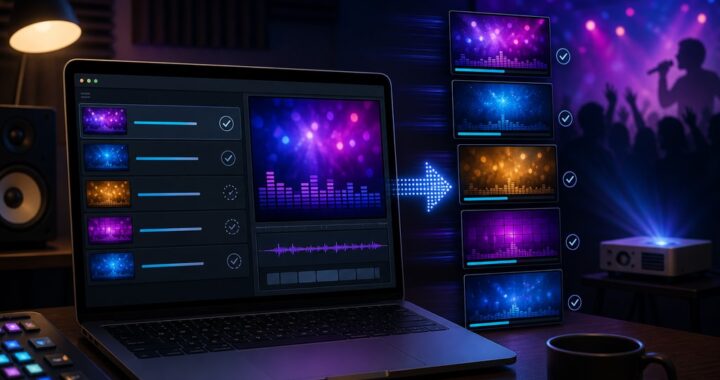
LyricMagic Pro's batch processing feature allows the creation of multiple videos simultaneously:
- Consistent Templates: Apply uniform templates across videos to maintain brand consistency.
- Time Management: Batch processing reduces the time spent on individual video creation, allowing focus on other creative aspects.
Consideration: Evaluate your typical video production load to decide if batch processing will significantly impact your workflow efficiency.
Checklist for Efficient Lyric Video Creation
- [ ] Prepare high-quality audio files.
- [ ] Ensure accurate lyric transcription.
- [ ] Select appropriate fonts and backgrounds.
- [ ] Align lyrics with music beats.
- [ ] Choose optimal export settings.
- [ ] Utilize batch processing for multiple videos.
Frequently Asked Questions
Q: Can I use LyricMagic without an internet connection?
A: Yes, LyricMagic operates entirely offline, ensuring privacy and reliability.
Q: Does LyricMagic support lyric editing?
A: Yes, LyricMagic Pro offers advanced lyric editing capabilities.
Q: Is batch processing available in the free version?
A: Batch processing is a feature exclusive to LyricMagic Pro.
Q: What file formats does LyricMagic support for audio input?
A: LyricMagic supports common audio formats such as WAV and MP3.
Q: Can I customize the background in my lyric videos?
A: Yes, LyricMagic Pro allows for customizable backgrounds to enhance your videos.
For more advanced features and to elevate your lyric video production, consider exploring LyricMagic Pro.
Topic-Specific Advice: For indie artists, focusing on simplicity in design can reflect authenticity and connect better with niche audiences.